
UTXO Management
How to Consolidate UTXOs in Trezor Suite with Coin Control
Consolidating in Trezor Suite is a send to yourself: pick coins in Coin control, send max to a fresh address in the same account, and check the preview.
Say a year of monthly exchange withdrawals has left a dozen small UTXOs in one Trezor Suite account. Merging them is a payment to yourself: you pick the coins in Coin control, send them to a fresh address in the same account, and pay one miner fee. Whether that fee is worth paying is a separate question, answered in the break-even calculation. In Sparrow, the same payment to yourself takes six steps. If your wallet shows no coin list at all, read what a send-max can and can't do first.
The steps use the desktop app. They assume your Trezor is set up, its backup has been checked, and you know which account holds the coins.
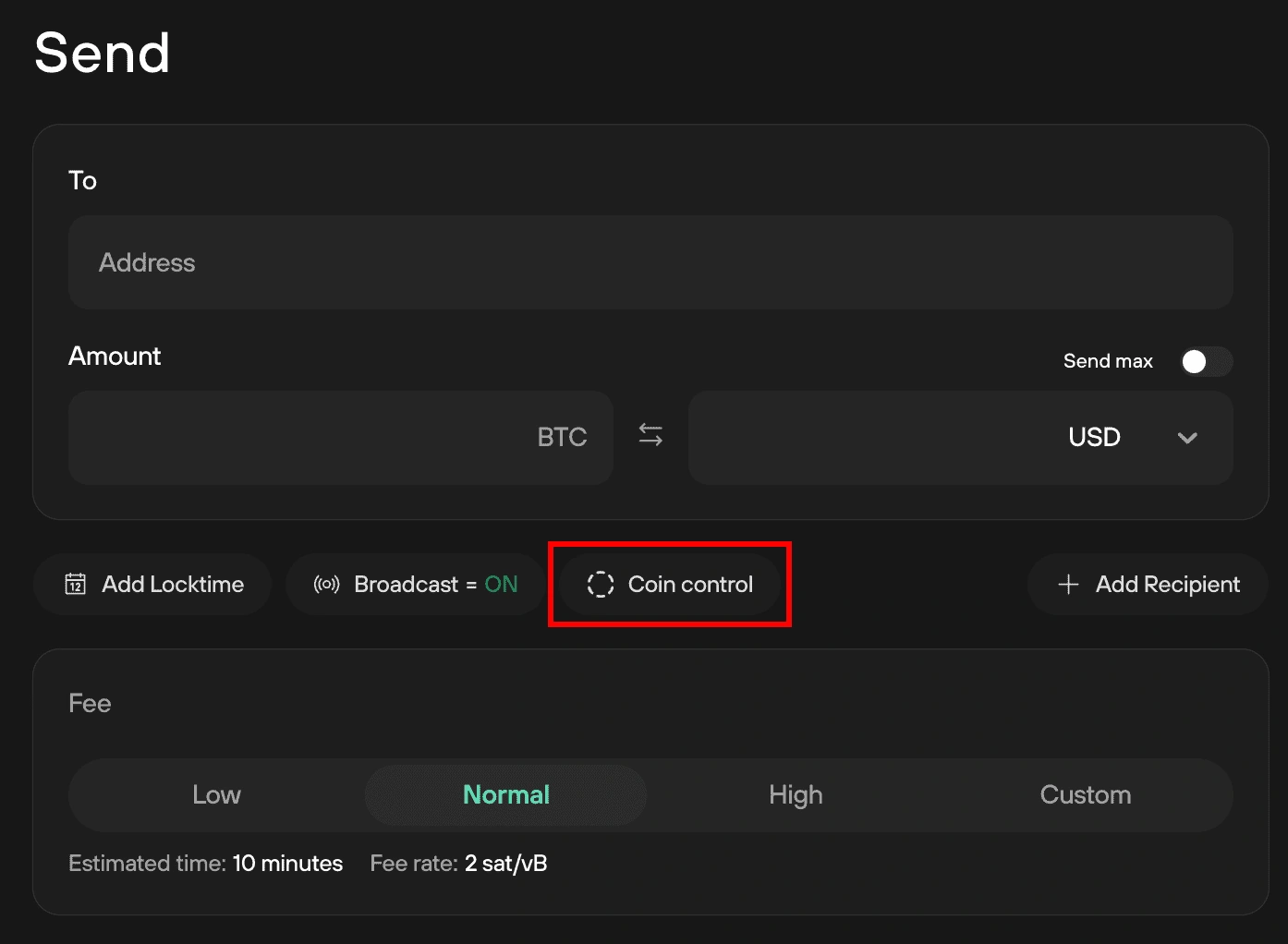
The Coin control button sits just under the Amount field. The fee in the image is only Trezor's example, from its coin-control guide.
Consolidate UTXOs in Trezor Suite step by step
- Get a fresh address in the same account. Open the Bitcoin account, choose Receive, and copy the new address. Click Verify and compare it with the address on your Trezor's screen.
- Open the Send form from that account. Paste your own address into Address and enter any amount. You'll replace it in step 4. Fill in both fields before you open coin control.
- Select the coins. Click Coin control to list the account's UTXOs, then tick only the ones you plan to merge. Match each against your labels and records, and leave out any coin you can't identify.
- Send the whole selection. Switch on Send max so the amount becomes the selected coins minus the fee. Check that the input total shown equals the sum of the coins you ticked, not your whole account balance. If it doesn't, stop. Closing the unsent form costs nothing, so start again from step 2.
- Choose a fee. Trezor Suite offers Low, Normal, and High, plus a custom rate. Trezor warns that a fee set too low may never confirm. A consolidation isn't urgent, but it still needs a rate the network will relay.
- Check the totals before you continue. The transaction should have one output, to your own address, and no change. For example, two savings UTXOs of 120,000 and 80,000 sats with a 500-sat fee should produce 199,500 sats at the destination. If a change output appears, the amount isn't the whole selection, so go back and switch on Send max again rather than signing.
- Review & send, then sign on the device (details below).
Trezor's own advice agrees with the fee math: combine smaller UTXOs during a low-fee period, and don't merge all of them at once. Merging coins from different sources reveals your total on-chain, and it can't be undone.
Where is UTXO management in Trezor Suite?
There's no separate UTXO tab. Trezor Suite puts UTXO selection inside the Send form of a Bitcoin account: fill in Address and Amount, then click Coin control (tap it in the mobile app) to see each coin the account holds. Opening the list just to look commits you to nothing. Turning coin control off hands selection back to Suite's automatic process, which favors older UTXOs and lower fees.
Coin control lists only the account you opened. Trezor Suite never combines coins from two accounts in one transaction (accounts guide), so coins in a Legacy or Taproot account need a separate send from that account. Sending them into your main account links the two accounts publicly.
Which coins belong together?
A wallet can gather enough BTC to cover a transaction without knowing which sources you want kept apart. Private labels are what make coin control useful. Suppose the account holds these UTXOs:
| Label | Value | Plan |
|---|---|---|
| Savings withdrawal A | 120,000 sats | Can be merged with B |
| Savings withdrawal B | 80,000 sats | Can be merged with A |
| Personal payment | 70,000 sats | Keep separate from savings |
Consolidating only the two savings coins matches the plan. Ticking all three defeats it. Go by the label, not only the address, since several receipts can share one address.
Coin control for an ordinary payment
The same list helps with normal sends. For a 90,000-sat payment in the example above, savings A might cover the payment and the fee by itself. If the wallet quotes a 1,000-sat fee, 29,000 sats return to you as change:
120,000 input = 90,000 payment + 29,000 change + 1,000 fee
That change isn't an extra charge. Selecting both savings coins instead would change the change amount and could raise the fee, because another input adds size. Read the actual preview rather than carrying over an earlier estimate.
If the selected coins can't cover the payment and the fee, lower the payment only if that still does the job, or add a coin that belongs with the others. An insufficient-balance warning is no reason to pull in unrelated coins.
Review and sign on the device
Once the preview matches your purpose, choose Review & send. Confirm the destination, amount, and fee on the Trezor, then sign on the device. Return to Trezor Suite and click Send to broadcast.
Stop if the device shows a destination or fee you didn't expect. For a consolidation, the address on the Trezor screen should match the one you verified in step 1. A screenshot shows where a control is. Only the device screen can validate the transaction.
Signing doesn't broadcast. Until you click Send, you can cancel with the cross in the top right of Trezor Suite. In the mobile app, the buttons are Review and sign and then Send transaction, and the cancel cross sits in the top left. After you send, the transaction can't be taken back.
After broadcast: record what you merged
Save the transaction ID. After confirmation, the selected coins should no longer appear in coin control, and one new UTXO should sit at your address.
Still unconfirmed after a few hours, and you'd rather not wait? Find it in the account's transaction list, click Speed up, choose a higher fee, select Replace transaction, and confirm on the device (Trezor's RBF guide). Each bump adds to the fee, and a merge with no deadline can simply wait (what waiting looks like).
Then label the new coin with what it contains, such as "Savings A + B, merged", so future you knows which sources it links. Where that label lives depends on your device. This is how Trezor's guides laid it out when we read them in September 2026:
- Trezor Safe 3, Safe 5, and Safe 7 use Suite Sync, chosen under Settings > Application > Labeling (labels you already keep in the legacy format stay there until you migrate them). Labels are encrypted with keys derived from your wallet backup and stored on Trezor's server by default (or on a server you run), so they come back when the backup is restored.
- Model One and Model T use legacy labeling, stored in Dropbox, Google Drive, or a local file on your computer (desktop only). A local file isn't restored by your recovery words, so back it up separately. The folder paths are in Trezor's labeling guide.