
Backups & Records
Trezor Check Backup Failed? Test Your Seed Without Wiping
A failed Trezor backup check erases nothing. Run it on a Model T, fix the usual causes, and know what to do if the words still don't match.
A failed Check backup on a Trezor usually comes down to a word in the wrong place or a word spelled slightly wrong. The check itself erases nothing. The device compares the words you enter with the backup it already holds and doesn't store what you type, so your wallet stays on the device whether the result is a match or an error.
This guide walks through the check on a Trezor Model T. Trezor no longer sells it, but when we followed its Model T backup guide on September 25, 2026, the page said the device would receive maintenance until at least 2031 and critical security fixes until at least 2036. The Suite steps are the same on newer devices and the device steps differ, so on a Safe 5 or Safe 3, follow that model's guide. The Safe 3 uses its two buttons instead of a touchscreen, and you leave the check through a Cancel option rather than an X.
When to run the check
Run it before you wipe the device and before every firmware update. The update matters more than it looks: if one goes wrong, the backup is what you'll recover from. It's also worth a run before regular withdrawals start arriving, while a bad backup is still cheap to fix.
What a passed check tells you
The backup restores the wallet's underlying secret. The PIN unlocks this particular device. An optional passphrase selects a different wallet derived from the backup. These are not interchangeable, and a passed check covers only the first.
Passing shows that your card matches the wallet on the device. It doesn't test where the card is stored or who else could read it.
Do not wipe the only working device to "test the seed." If the backup is wrong, that experiment removes the access you still have.
Before connecting the Model T
Use the Trezor Suite desktop app, or open Trezor Suite for web directly from trezor.io. Have the initialized Model T, its USB cable, and your complete backup card ready. Keep cameras, screen sharing, and other people away from the process.
Confirm that you know the current PIN and can open the expected wallet normally. If you can't unlock the device, stop here and leave resetting out of it. A forgotten PIN has its own order of steps, and it starts with testing the card somewhere else.
Run the Model T backup check
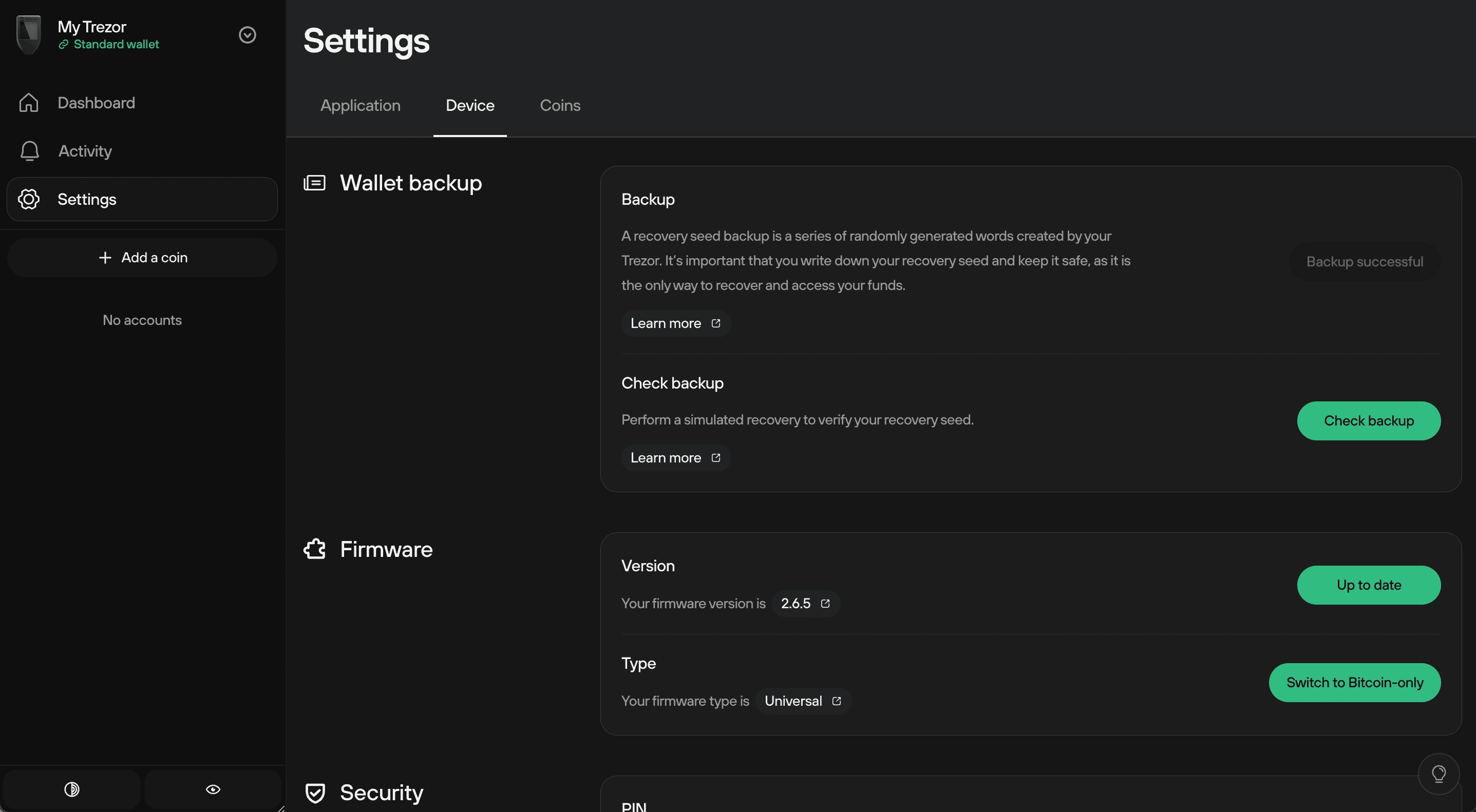
Check backup lives in the Wallet backup section of Device settings, as in Trezor's Model T guide.
- Open Trezor Suite, connect the Model T, and enter your PIN.
- Open Device settings: select the settings gear and choose Device, or click the device name at the top left and then the gear.
- Under Wallet backup, choose Check backup.
- Tick I understand and click Start.
- On the Model T, select the number of words in your backup, then enter each word in order on the touchscreen.
- If the words match, the device confirms it. Click Close in Suite to return to Device settings.
Unplug the device partway through and the check starts again from the beginning. Multi-share Backups are the exception. Trezor supports staggered entry for them, so you can enter one share, disconnect, and continue later, which helps when shares are stored in different places.
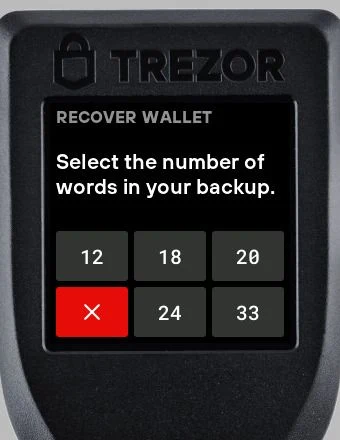
The heading says Recover wallet even during Check backup, and that's normal. Your way out is the X at the bottom left, which leaves the check without erasing anything. Firmware 2.8.9.
Wallet backup check failed: common causes
One failed attempt isn't a verdict on your card. Try once more, slowly, in case you simply selected a wrong word. Trezor's backup troubleshooting page starts there too. Before the second attempt, read the message on the device. If it says the words are "valid but do not match," every word was on the list, so go straight to the last cause below. Otherwise start at the top:
- Words entered out of order. On the Model T, Safe 3, and Safe 5, the words must be entered in the order written on your card, directly on the device. (The older Model One is different: it asks for words in the order shown on its display.)
- A misspelled word. Every backup word comes from a fixed public list: the BIP39 list for 12- and 24-word backups, and the SLIP39 list for 20-word Single-share and Multi-share Backups. A word on your card that isn't on the list is misspelled. Near-twins such as aware/awake and boy/box are the classic trap, and Trezor keeps a fuller list of commonly confused words.
- The wrong word count. The count you select has to match the card. The Model T offers 12, 18, 20, 24, and 33.
- The wrong card or backup type. A message that the backup or shares are "valid but do not match" the device means every word was on the list. Check the order again, and check that this card belongs to this device and not to an older wallet. A Multi-share Backup needs enough shares to reach the threshold set when the wallet was created, and the Multi-share recovery guide shows how they're entered. The first two words are the same on every share of one backup, so a share that opens with different words belongs to another backup and can't be combined with these (Trezor's Multi-share overview). If you can't gather enough matching shares to reach the threshold, the check can't pass. Treat that as a failed check.
Compare the card with the word list on paper or on a screen you trust, but never type the backup into a website, a "seed checker," or a chat. An online checker can steal the complete backup while showing you a reassuring result. Trezor support can interpret an error without seeing any of the words. For failed checks the route is its support chatbot, Hal, reached from trezor.io/support, and it helps to have the device model, the backup type and word count, and the exact error message ready. Trezor says it will never contact you about your wallet backup or ask you to perform actions with your wallet (its scam guidance), so a message offering help with yours is a scam, whoever it claims to be.
If the check still fails
If a second careful attempt, after the causes above, still ends in an error, treat the card as unusable and plan to move the crypto to a new backup as soon as possible.
That is serious, but it isn't an emergency. The device still signs, and that gives you time to do this properly.
Until the move is done, hold off on four things: a larger deposit, wiping the device, a reset, and a firmware update. Then leave Check backup mode. The exit is the X at the bottom left of the screen that asks you to Select the number of words in your backup. If your Model T shows that screen after the failed attempt, press X, and the device goes back to working as normal. If it shows something else, follow the prompts on the device or ask Trezor support before doing anything that could reset it.
Treat the still-working device as your only confirmed access and move the funds while it can still sign. Without a valid backup, losing access to the device means losing the funds permanently.
Firmware updates are on that stop list because Trezor warns that an update can wipe a device, and without a working backup the wipe is final. If Trezor Suite insists on an update before it will open the wallet, an older Suite release or Electrum is the workaround in Trezor's guide for returning users. Neither is guaranteed to work.
The route to aim for uses a second hardware wallet:
- Initialize the second device as a new wallet and record its new backup separately.
- Check the new backup with that device's own Check backup process.
- Generate the receiving addresses you need and verify each one on the second device's screen.
- Use the original Model T to transfer every account and asset to the new wallet, including any Legacy or Taproot account and each passphrase wallet you use, since all of them depend on the backup that failed.
- Confirm each transfer in the destination accounts. Keep the original device intact until everything has been moved and checked.
- When every account on the Model T shows zero, wipe it or set it up again with a new backup. Write the creation date on the new card so the two can't be confused. If the old card gave a "valid but do not match" message, keep it until you know which wallet it belongs to. It may open an older wallet with coins of its own.
That sequence comes from Trezor's Move crypto to a wallet with a new wallet backup. The same page has a single-device sequence, but it begins by confirming the old backup is valid and then wipes and restores the device. It does not apply when the old backup has just failed. Nor is a Multi-share Backup from Suite's device settings a shortcut: the firmware unlocks that option only after you enter the existing backup and it matches the device (that's how Trezor's device software handles it).
With no second hardware wallet, and waiting itself a risk to access, a wipe-and-restore is still the wrong move. The same page has an emergency-only route that sends funds to a third-party hot wallet app first. That puts the interim wallet and its new secret on an internet-connected computer, so treat it as a stopgap and move the funds to a hardware wallet with a new backup as soon as you can. The original Model T stays intact until all transfers are confirmed.
If the device is lost, broken, or locked
It won't connect. Try a different data cable and another computer before anything else. A cable change fixes most connection problems (troubleshooting). If the device then accepts your PIN, you still have access, and the moving steps above apply.
You've forgotten the PIN. Don't guess toward the limit: after 16 wrong entries a Model T resets itself and erases the wallet (Trezor's PIN guide). A reset is how you'd get back in, so test the card first. Recover it on a second Trezor and compare a receiving address or past transaction you can confirm independently, such as the destination of an earlier withdrawal in your exchange history. If it matches, reset the Model T with Trezor's PIN reset steps. If it doesn't, leave the locked device alone. It's still your only copy of the wallet.
The device is gone and the card won't restore. Recover on a new device bought from trezor.io or an authorized reseller, and read the error:
- An invalid-backup error means a word is wrong. Check each one against the word list. Every BIP39 word is identified by its first four letters (the BIP39 specification), and the same holds for the SLIP39 list, so a smudged ending can often still be read.
- A valid backup that opens an empty wallet usually points to a passphrase, an account type that hasn't been added, or Bitcoin switched off in Settings > Networks (Trezor's checklist).
Hal can explain an error message, but Trezor states that if the backup is lost and the device can't open the wallet, it can't recover the wallet for you. Nobody else can either. Anyone asking for the words, a photo of the card, or a fee to "recover" the wallet is asking for control of whatever is left. If no spelling you can find restores the wallet, the coins can't be moved, and paying anyone won't change that.
Trezor passphrase wallet empty?
An empty wallet after you enter a passphrase usually means it isn't exactly the passphrase you used before. Trezor doesn't reject a wrong one. Any different passphrase, even one character off, opens a different, usually empty wallet instead of showing an error. A passed check on the base backup doesn't prove you recorded or remember the passphrase correctly either.
If you use one, confirm that entering it opens the account and balance you expect, and verify a known receiving address on the device screen rather than relying on a familiar wallet name. The passphrase-wallet guide covers how the two kinds of wallet differ in Suite.
If the expected wallet is empty or the address doesn't match, pause further deposits. Compare the passphrase with your private written record character by character, including capitalization and spaces, and confirm that Bitcoin is enabled in Suite. The specific screens and errors are on the passphrase troubleshooting page. Support cannot retrieve or reset a forgotten passphrase, and the PIN cannot stand in for it.
After the backup matches
Check that the card is readable and stored where it is safe from loss and from other people. Note the date of the check privately, without the words, PIN, or passphrase, so you know when you last tested it.
Then go back to the withdrawal you were preparing. The check proved that the card matches the device. It says nothing about whether a withdrawal will reach the right account, so send a small test transaction to a receiving address you have verified on the Model T before moving more.